
Vuze VPN Setup: Bind Vuze to the Right VPN Interface
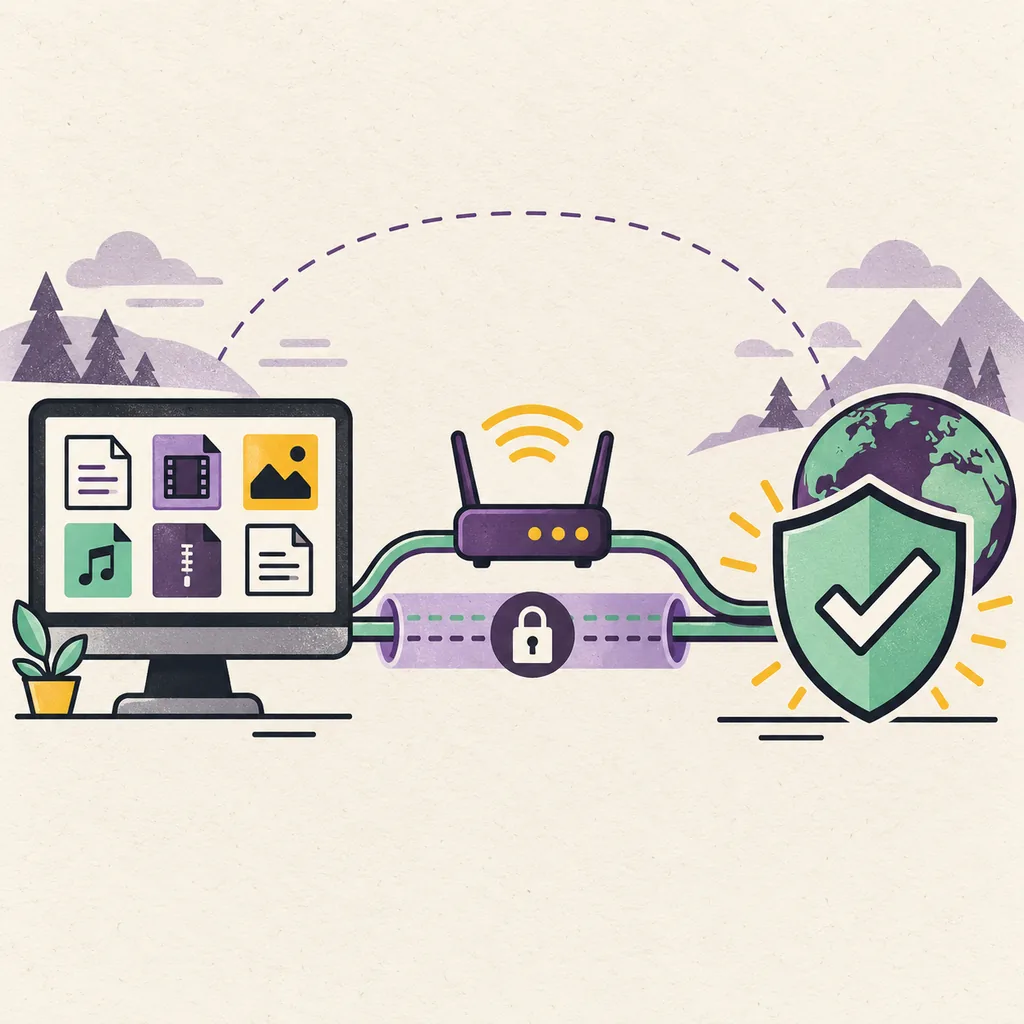
A reliable Vuze VPN setup is a routing check, not a promise that every torrent will be fast or private by magic. First connect the VPN, identify the adapter that actually carries traffic, bind Vuze to that interface when the build exposes the option, then test the result with a legal, controlled transfer. This guide keeps the useful checks together and shows when a legacy client is the wrong place to keep experimenting.
Use Vuze only with content you are authorized to download and share. This is an independent editorial guide, not a VPN provider guarantee or an official Vuze screenshot.
- Primary intent
- VPN setup and troubleshooting Not a provider review
- Check first
- The active VPN adapter The label can change after reconnecting
- Safe test
- One legal, known-active transfer Change one setting at a time
- Review date
- October 9, 2026 Legacy-client context is kept separate
How Vuze VPN setup should work
The short version is connect, identify, bind, test and recover. Do not begin by opening random ports or disabling every protection on the computer.
Start the VPN before opening a Vuze transfer and note the connection state. The adapter name may include a provider label, a tunnel protocol or a generic word such as TAP, Wintun or WireGuard. The name alone is not proof that Vuze is using it; the useful evidence is that the interface has an address, carries traffic and remains present while the VPN is connected.
If the Vuze build exposes an interface or bind-address preference, choose the VPN adapter rather than a physical Wi-Fi or Ethernet adapter. Apply the change, restart only the affected transfer if needed and run a small legal test. If the VPN disconnects, a strict binding can stop peers, which is safer than silently sending the transfer over the ordinary connection. That safety benefit disappears when the wrong adapter is selected or the setting is left on a stale interface.
- Connect the VPN and record its adapter name before opening the test transfer.
- Bind to the adapter that carries the VPN route, not simply the first interface in a list.
- Test with one legal transfer and watch the route after reconnecting the VPN.
Prepare the VPN connection before opening Vuze
A clean baseline makes a Vuze VPN setup easier to troubleshoot than a stack of changes made at once.
Choose a VPN configuration that allows the type of traffic you are authorized to use and that supports the operating system running Vuze. Read the provider's own policy for peer-to-peer traffic, port forwarding and kill-switch behavior. This guide does not endorse a particular provider; Similarweb demand data mentions provider-specific setup searches, but a provider's policy can change and should be checked at the source before you rely on it.
Before changing Vuze, close duplicate VPN clients, pause unrelated transfers and confirm that the system clock is correct. A wrong clock can break a VPN handshake or certificate check. Confirm that the tunnel has an address and that ordinary web traffic returns when the VPN is connected. If the VPN application shows a kill switch, understand whether it blocks all traffic during reconnects or only selected applications; that difference affects how a bound Vuze process behaves.
| Baseline check | What to record | Why it matters |
|---|---|---|
| VPN state | Connected profile, protocol and adapter label | The visible label can change after reconnecting or switching protocol |
| Vuze route | Interface, bind address or proxy value | A proxy is not the same as binding the whole client |
| Transfer state | Peer count, queue state and selected files | A VPN cannot supply peers or resume a paused task |
| Protection | Firewall profile and kill-switch behavior | A block during reconnect may be intentional |
| Recovery | The old values and a backup of settings | You need a known state when the VPN adapter changes |
Bind Vuze to the VPN interface
The exact menu wording varies across Vuze Classic builds and operating systems, so follow the concept rather than an unverified screenshot.
Open Vuze's network or connection preferences and look for an interface, bind-address, outgoing-interface or network-interface control. Some builds expose a specific interface name; others expose an address or a set of advanced network options. Select the adapter created by the active VPN session. Do not select a provider's browser extension, a disconnected virtual adapter or the physical adapter simply because it appears first.
If the list contains several tunnel adapters, compare the addresses shown by the operating system with the VPN client's current session. A reconnect can create a new address or replace an adapter. A saved name that worked yesterday may point to nothing today. When the client offers a strict binding or a 'require interface' style option, enable it only after recording the old value and understanding that peer traffic may stop when the tunnel is down.
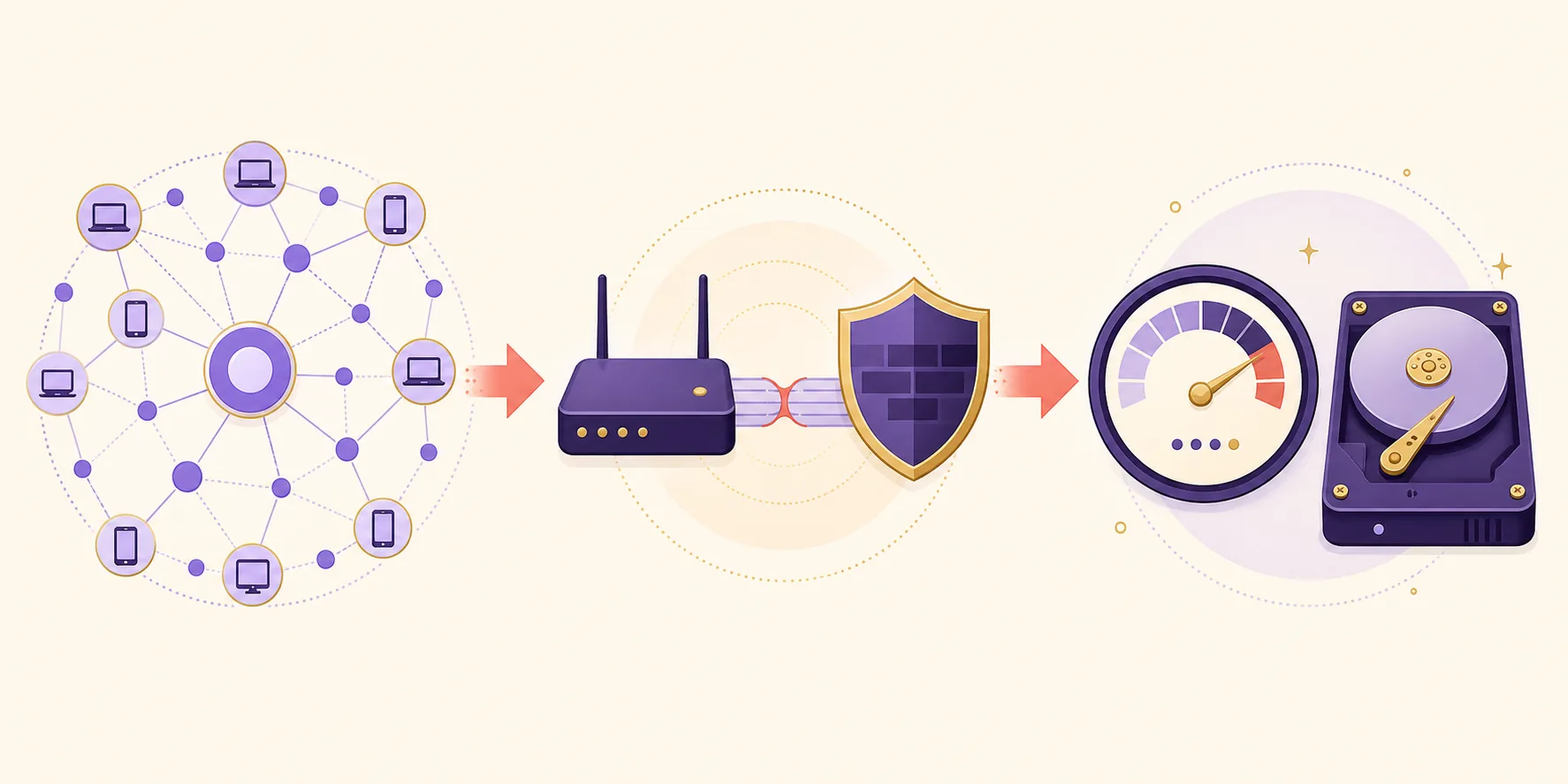
- ConnectStart the VPN profile you intend to use and wait until the provider reports a stable connection.
- IdentifyUse the operating system network panel to note the active tunnel adapter and its current address.
- SelectIn Vuze's connection preferences, choose the matching interface or bind address if the build exposes it.
- RequireUse strict binding only when you have a recovery path and accept that a disconnect can stop all peer traffic.
- TestRun one legal, known-active transfer and compare its state with the saved baseline before changing anything else.
Test the route and look for a leak
A connected VPN icon is not enough. Test the state that matters to the Vuze process and record what changes when the tunnel is interrupted.
Use a legal transfer with visible peers and a small, predictable payload. First test with the VPN connected and Vuze bound. Then pause the task, disconnect the VPN and observe the result. A strict binding should stop or fail to discover peers rather than quietly continuing over the ordinary interface. Reconnect the VPN, confirm that the selected adapter exists again and test whether the task resumes. This is a behavior check, not a guarantee that every operating-system path is covered.
Check the operating system's active route and the VPN provider's own status page or diagnostics. If the provider documents DNS or IPv6 handling, compare those settings with the local policy. Do not treat a public IP checker as a complete torrent privacy test, and do not publish an address or peer identifier in a support request. The useful record is the state transition: connected, bound, disconnected, stopped and recovered.
| Observed result | Likely meaning | Next safe action |
|---|---|---|
| Peers continue only while VPN is connected | Binding or kill switch is doing its job | Reconnect, verify the adapter and keep the baseline recorded |
| Peers continue after VPN disconnect | The bind may be stale, loose or pointed at another adapter | Recheck the selected interface and operating-system route |
| No peers only with VPN | Provider policy, firewall profile or wrong adapter | Check one layer at a time; do not disable all protection |
| Metadata never arrives | Magnet discovery, DHT, peers or the VPN path | Use the magnet-link troubleshooting guide |
| One transfer is slow but another is normal | Source health rather than the VPN binding | Leave global settings alone and compare legal test sources |
Fix Vuze VPN setup problems one layer at a time
Most failed VPN setups are easier to repair when you separate the tunnel, the Vuze binding, the firewall and the transfer source.
If Vuze cannot find peers at all, return to the saved interface value and check whether the VPN created a new adapter. Reconnect the VPN, reopen the preferences and compare the current name or address. If the interface is missing, remove the stale selection only after recording it. If the interface exists but traffic is blocked, compare the firewall profile used by the VPN and by Vuze. A private-network rule copied to a public profile can produce a silent failure.
If the client connects but speed is poor, avoid assuming that the VPN is the only cause. Compare one active legal source with and without the VPN only when your provider policy and local authorization allow the test. Check the queue, per-task limits, selected files and disk activity. More connections may add router or VPN load without creating additional peers. The download-folder guide helps when the real bottleneck is storage or a nearly full destination.
- Refresh the adapter after every VPN reconnect or protocol change.
- Check the correct firewall network profile instead of allowing every inbound connection.
- Separate a proxy value from an interface bind; test them independently.
Do not trade a stable route for a risky workaround
If the interface keeps changing or Vuze needs broad exceptions, back up the data and compare a maintained client before you weaken the firewall or install an unverified package.
Vuze VPN setup FAQ
These answers separate interface binding, provider policy and ordinary Vuze troubleshooting.
What is the safest Vuze VPN setup?
Connect the VPN, identify the adapter that carries its traffic, bind Vuze to that interface when the build supports it, and test a legal transfer with the VPN disconnected and reconnected. Keep the firewall and kill switch enabled. A provider connection alone is not proof that Vuze uses the intended route.
How do I bind Vuze to a VPN adapter?
Open Vuze's network or connection preferences and look for an interface, bind-address or outgoing-interface control. Select the adapter created by the active VPN session, record the old value, save it and test one controlled transfer. Recheck the adapter after every VPN reconnect because its name or address may change.
Why does Vuze stop downloading when the VPN disconnects?
A strict interface bind or a VPN kill switch may intentionally stop peer traffic during a disconnect. That can be a safer boundary than silently continuing on the ordinary connection. Reconnect the VPN, confirm the adapter exists and test again before changing the rule.
Does a VPN make Vuze download faster?
Not by itself. A VPN can change the route and the address visible to peers, but it cannot create seeds, fix a paused queue, remove a speed limit or repair a slow disk. Compare the same legal source before and after the route change.
Should I open a port to fix Vuze VPN problems?
No, not as a first step. Check the adapter, route, firewall profile, provider policy and peer availability first. If a documented port-forwarding path is appropriate, make the router, Vuze and VPN settings refer to the same path and keep the change narrow.