
How to Select Only the Files You Need to Download in Vuze
To download only part of a Vuze torrent, wait until its file list is visible, clear the items you do not need, then confirm the destination and start the transfer. The selection belongs to the task; it is not the same as deleting files from your computer.
This is an independent workflow guide for a legacy Vuze installation. It does not host torrent content or promise that every old menu behaves identically on a current operating system.
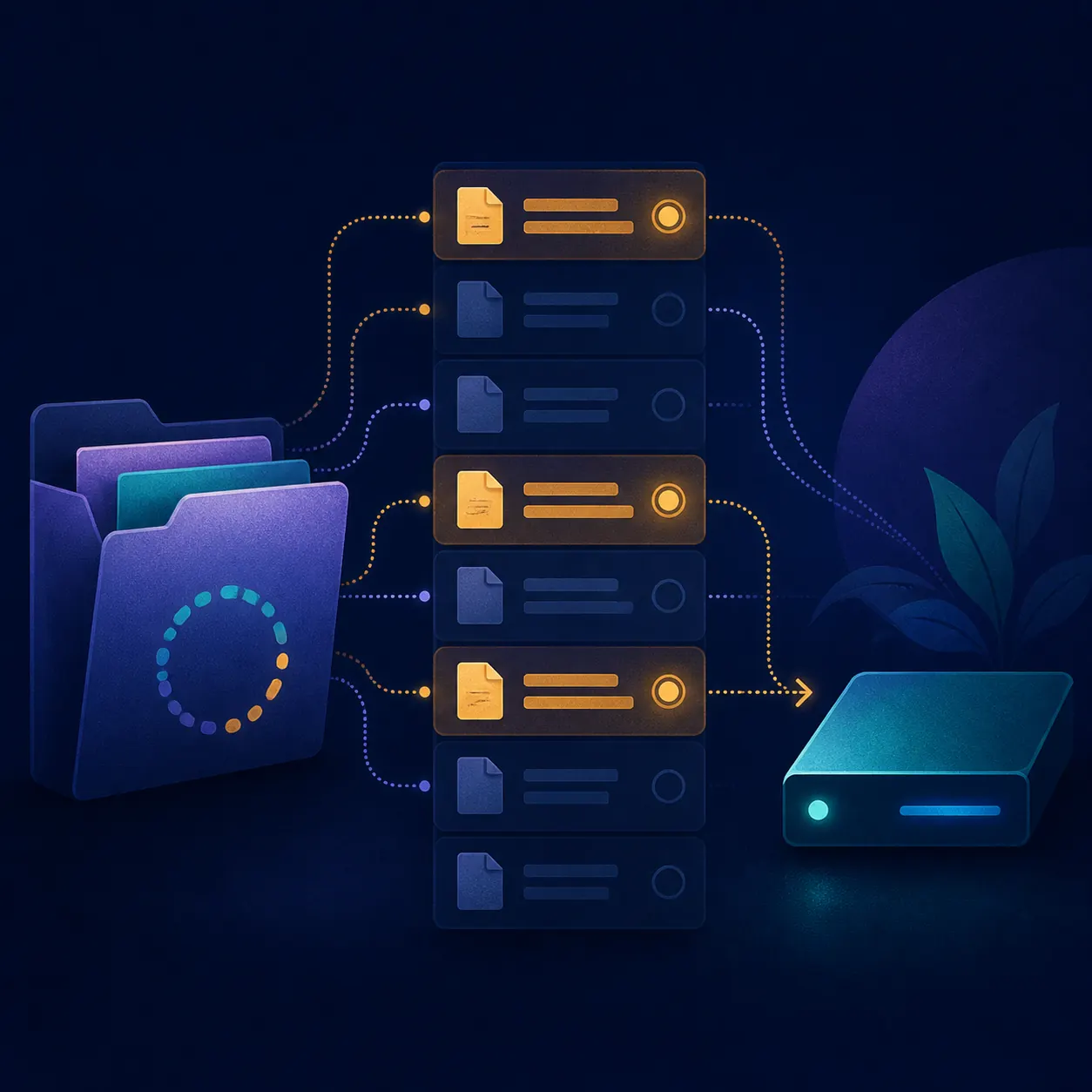
- Main task
- Choose individual files Before regular piece transfer
- Required state
- File list visible Metadata must be available
- Selection result
- Unwanted files stay unselected The torrent task remains
- Version context
- Vuze 5.7.6.0 legacy line Checked against the SourceForge project area
When can you select files to download in Vuze?
You can choose individual files only after torrent or magnet metadata reveals the list. Wait for filenames and sizes, then change selection before normal transfer grows.
Open a torrent file or magnet link only from a source you can identify and are authorized to use. If Vuze is still showing a metadata or magnet stage, there may be no complete list to edit yet. Wait for the task to reveal filenames, sizes and their current selection state before judging that the option is missing.
The exact wording can vary by Vuze release, operating system and interface mode. Look for the task's file list, content view or selection-related context menu rather than assuming that the browser, download folder or speed panel controls the same thing. If the magnet never produces metadata, use the Vuze magnet-link troubleshooting guide first.
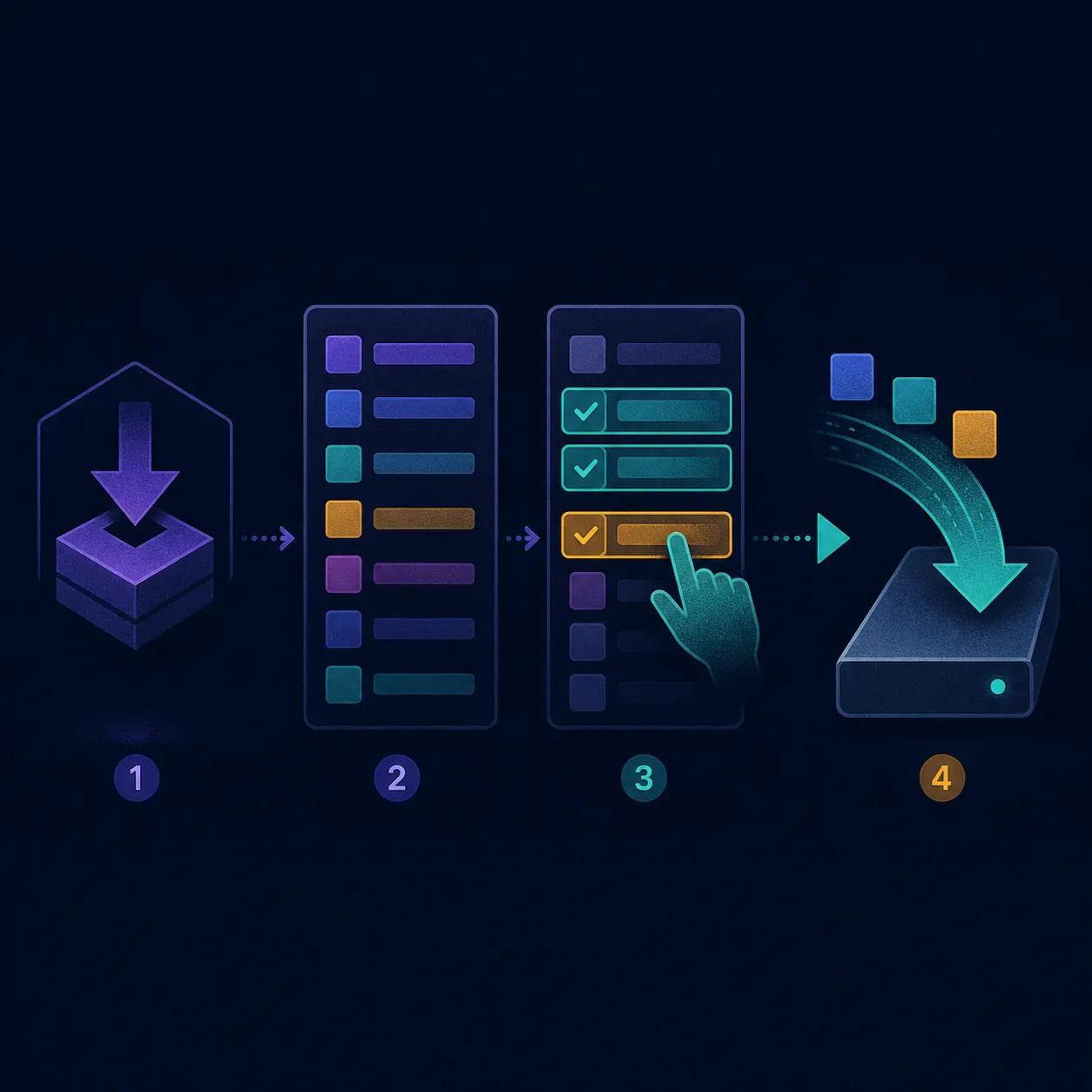
- Start with a permitted sourceUse only material you are legally allowed to download and share.
- Open the torrent or magnetLet Vuze create the task instead of moving files manually in the operating system.
- Wait for metadataA magnet may show a task before it can show the individual filenames.
- Open the file listReview names, sizes and the selected or queued state before transfer.
- Confirm and startCheck storage and destination, then allow only the chosen content to transfer.
How to select only some files to download
The safest moment to make the choice is before the task has transferred much data. Use the list as a checklist, not as a substitute for a storage plan.
In the task's file or content view, identify the rows you want to keep. Select the unwanted rows and use the available priority, skip or deselection control for that release. Some versions use a context menu; others expose the action in a toolbar or details panel. The important outcome is that the unwanted entries no longer have the normal download priority before you confirm the task.
After changing the selection, scan the total expected size and the destination folder. A multi-file torrent can contain large media files, samples, artwork or documentation that you did not intend to keep. If the list is not yet complete, pause the decision rather than selecting by filename alone.
- Keep the files required for the authorized use case; do not assume the largest file is the only useful one.
- Check the selected total against free disk space before starting the transfer.
- Use a clear folder and record the destination if the task is part of an older Vuze workflow.
- Start with a small, observable selection so you can confirm the client behaves as expected.
| What you see | What it usually means | Best action |
|---|---|---|
| File list is incomplete | Metadata or content details are still arriving | Wait, then reopen the file view |
| Rows are selected | Vuze plans to request those files | Keep only the rows needed for the task |
| Rows are skipped or low priority | The task remains but those files should not transfer normally | Confirm the status and watch the first pieces |
| Transfer already started | Some pieces may already exist locally | Change selection carefully and verify the task afterward |
Not downloading a file is not the same as deleting it
A selection changes what Vuze requests. It should not be treated as permission to remove existing data from the drive.
If a file was already transferred, clearing its selection may leave partial or complete data behind depending on the task state and the release. Do not use the file-list control as a cleanup shortcut. First pause the task, understand what exists on disk and decide whether the data is still needed.
When you need a different storage location, follow the Vuze download-folder guide instead of dragging active files to another drive. When you need a speed improvement, changing selection can reduce the planned workload, but it does not repair peer discovery, queue limits or a blocked network path; use the Vuze download-speed guide for those checks.
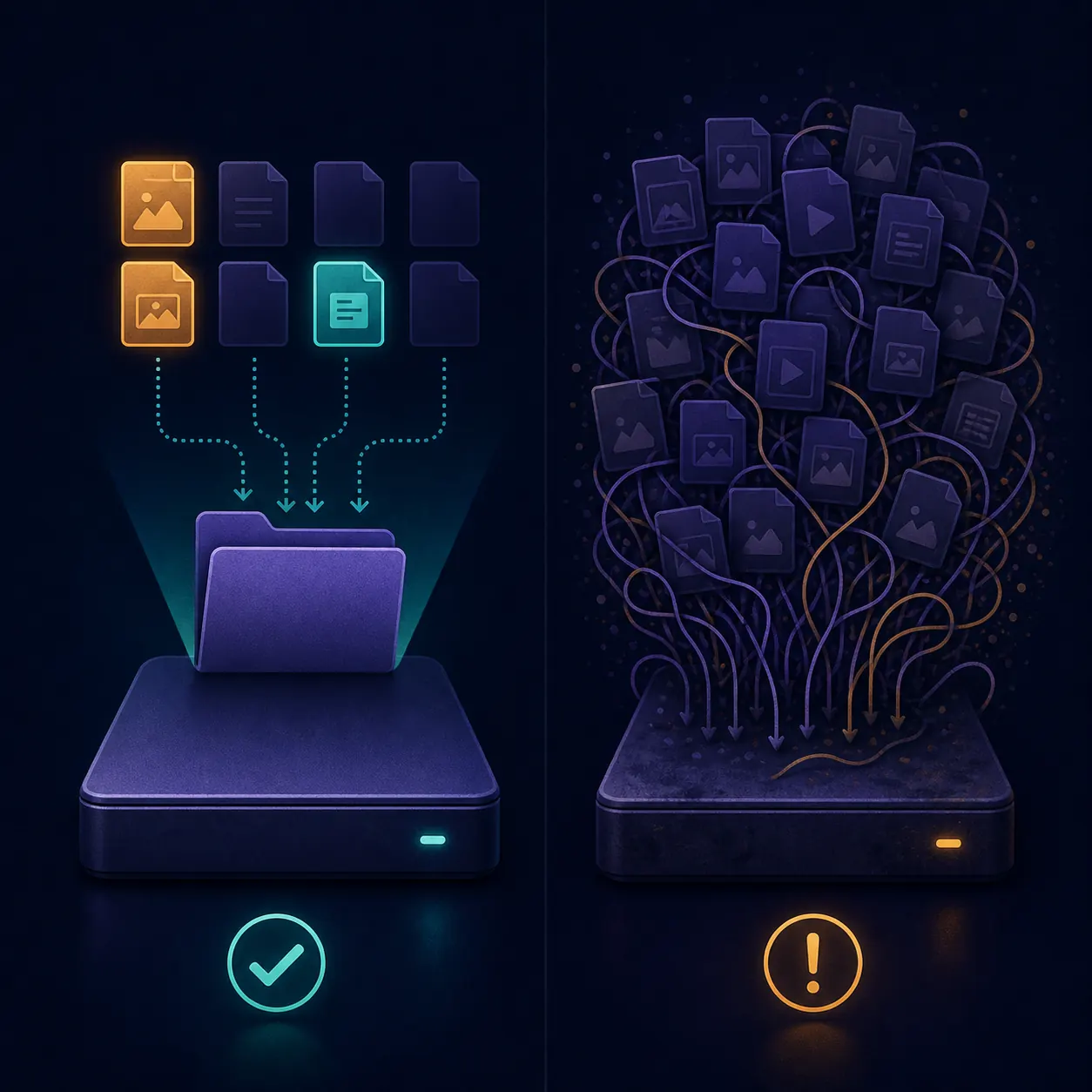
- Pause before changing a task that already contains partial data.
- Keep the original folder structure when you need to resume or recheck files.
- Do not delete files simply because their row is no longer selected.
- If Vuze reports missing data after a move, use the storage-location procedure and recheck the path.
Storage checks and common selection problems
Most selection mistakes are timing or state mistakes: the file list was not ready, a task had already started, or the destination did not have room for the chosen set.
If the selection seems to reset, let metadata finish, close and reopen the task details, and check whether the release uses a priority or skip state rather than a simple checkbox. If the file list is visible but the transfer ignores your choice, pause once, record the current state and test a single small file. Do not repeatedly remove and re-add the torrent because that can make it harder to distinguish a selection issue from a path or metadata issue.
If only selected files appear to be slow, inspect seeds, queue limits, bandwidth rules and the network path separately. The client can correctly honor a selection while still having no useful peers for one particular file. For a legacy setup, keep operating-system protections enabled and avoid installing unverified add-ons to make the task behave differently.
| Problem | Likely cause | Safe next check |
|---|---|---|
| No file list | Magnet metadata has not completed | Check the magnet workflow and wait for metadata |
| Everything begins transferring | The selection was made after the task started or was not confirmed | Pause, reopen the file view and verify the state on one small item |
| Selected total is too large | Whole folders or high-size files remain active | Clear unnecessary entries and compare the total with free space |
| Files are in the wrong place | The task path and filesystem path disagree | Use the folder guide; do not drag active data blindly |
Version context for this Vuze workflow
Menu names and behavior can differ because Vuze is legacy software. The page describes the stable task concept rather than claiming that every current platform exposes the same control.
The Azureus/Vuze SourceForge project area checked on August 11, 2026 still shows Vuze 5.7.6.0 as the verifiable legacy release line, dated November 2, 2017. No newer first-party Vuze release was verified during this check. That is source context, not a statement that the archived package is current, secure or compatible with every Windows, macOS or Linux installation.
If you are preserving a documented old workflow, record the task name, selected files, destination and operating-system details before changing anything. If you are starting a new setup without a Vuze-specific dependency, compare a maintained client through the site's Vuze alternatives guide. For source and platform cautions, see the Vuze safety guide.
Vuze select-files FAQ
Short answers for choosing part of a torrent without confusing selection, storage and deletion.
How do I select only certain files to download in Vuze?
Wait for the torrent or magnet metadata to reveal the file list, open the task’s file or content view, clear or lower the priority of unwanted rows, and check the selected total, destination and free space before starting transfer.
Why can I not see the files in a Vuze magnet task?
A magnet may create the task before its metadata is complete. Wait for metadata and peer discovery; if it never arrives, troubleshoot the magnet association and network path before trying to choose files.
Does unselecting a Vuze file delete it?
No. Unselecting changes what the task should request. It is not a safe substitute for deleting or moving existing data, especially after pieces have already been written to disk.
Can I change the selected files after a Vuze download starts?
Often the task can be adjusted, but the exact control depends on the legacy release. Pause when practical, record the current state, change one small selection and verify the next pieces rather than repeatedly removing the task.
Why does Vuze download every file even after I choose some?
The selection may not have been confirmed, the task may have started before the change, or the release may use priority/skip states instead of a checkbox. Reopen the file view, inspect one small item and check whether the task is actually paused or queued.
Is this guide for the latest Vuze version?
It describes a stable legacy workflow and was checked against the Azureus/Vuze SourceForge project area on August 11, 2026. The verifiable release line remains Vuze 5.7.6.0 from November 2, 2017; that does not guarantee current support or compatibility.